
Cart 0

Written by Jacob Sipos
Published September 18, 2026
How To Use AI To Edit Videos
AI can speed up editing without taking the editor out of the process.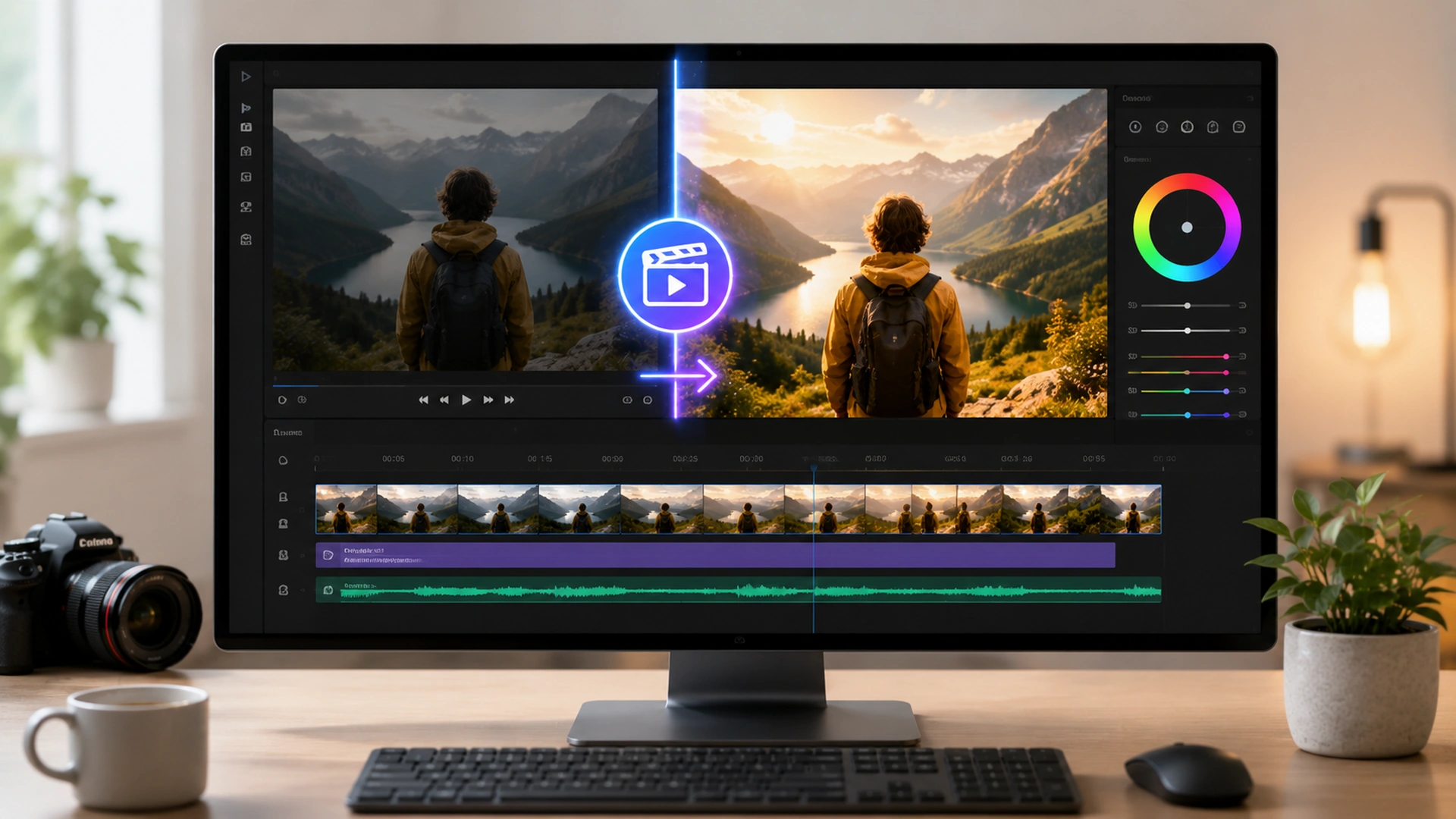
You do not need to hand every decision to AI. The useful approach is to let it handle repetitive work while you keep control of the story.
Modern video tools can transcribe speech, find clips, remove filler words, improve dialogue, create captions, reframe footage, suggest short clips, and even make generative changes inside a shot. Used well, these features can save hours. Used carelessly, they can remove context, create awkward pacing, or introduce details that were never in the original footage. This guide shows you how to get the first result without the second.
AI is most valuable when it helps you move faster while you still review the creative and factual decisions.
What Is AI Video Editing?
AI video editing means using software that can analyze video, audio, speech, or visual content and help perform editing tasks that traditionally required more manual work.
That does not mean the software automatically knows what your finished video should be. It means the editor can ask the software to help with specific jobs. For example, an AI feature may turn dialogue into a transcript so you can cut a sentence by deleting words. Another feature may identify speech that sounds noisy and make it clearer. Another may search hundreds of clips for a person, object, action, or spoken phrase.
The easiest way to understand the technology is to stop thinking of “AI editing” as one giant feature. It is really a collection of tools. Some tools help you organize. Some help you cut. Some help with audio. Some help with captions. Some help you resize or repurpose a finished video. Generative tools go further by creating or changing visual material. Your job is to choose the right tool for the problem in front of you.
The principle that makes this work
Let AI do the repetitive first pass. Let a person make the final judgment. That one habit prevents many of the problems people fear when they hear “AI video editing.” You are not giving up control. You are using a faster set of tools.
Because AI editing is a collection of tools, the first practical decision is which application should hold them for you.
Which AI Video Editing Tool Should You Use?
Search for “AI video editor” and you will find more options than you could ever test. You do not need four subscriptions just because four good tools exist. Start with the type of work you already do. A professional timeline editor and a text-first editor can both use AI, but they are designed around very different ways of working.
PICK THE JOB FIRST, THEN PICK THE TOOL
Adobe Premiere Pro
Best when you want a traditional professional timeline plus AI features such as Text-Based Editing, Media Intelligence, Enhance Speech, captions, and generative tools. It is a strong fit when editing is already a serious part of your work.
Descript
Best when the video is driven by speech. Interviews, lessons, podcasts, tutorials, and talking-head videos become easier because the transcript is central to the editing experience. It is one of the easiest ways for a beginner to understand text-based editing.
CapCut
Best when you want a fast path to social video, captions, vertical formats, and short clips. Its long-video-to-shorts workflow is particularly approachable for people who want to repurpose existing content.
Runway
Best when the problem is inside the picture itself. Its Edit Studio can transform existing footage with prompts, including replacing backgrounds, removing objects, changing elements, relighting, or restyling a shot.
If you are completely new, choose one tool and complete one small project before comparing features. A two-minute talking-head video is enough. You will learn more by removing one mistake, cleaning one audio clip, creating captions, and exporting one finished video than by opening every AI menu in every application.
So what does that first small project actually look like? The next section walks through it step by step.
Your First AI Edit: Exactly What To Do
The hardest part of learning a new editor is knowing where to start, so here is a specific starting point. For a first project, use a short video in which one person speaks to the camera. A tutorial, introduction, interview answer, or simple lesson works well because the connection between the transcript and the video is easy to see.
Beginner path in Descript
Official Descript site1
Create a project and upload the recording.
Descript transcribes the speech and connects the transcript to the media, so every word on the page matches a moment in the video.
2
Read the transcript before touching the timeline.
Find a sentence you know you do not need. Delete it from the transcript and watch how the matching section of video changes.
3
Use Underlord for a focused request.
Ask it to identify filler words, remove obvious retakes, or help make a first pass. Do one job at a time so you can understand what changed.
4
Play the edited section with your eyes closed.
Listen for unnatural jumps, rushed speech, missing breaths, or a sentence whose meaning changed because too much was removed.
5
Watch the picture again before exporting.
A text edit can create a visual jump cut. Decide whether that jump is acceptable or whether you need B-roll, a tighter crop, or a different edit point.
If you prefer Premiere, the idea is similar but the interface is more traditional. Import your clips, open the Text panel, transcribe the dialogue, select useful transcript passages, and add them to a sequence. Adobe’s Text-Based Editing is designed to help create rough cuts from transcripts, but the final sequence still benefits from normal timeline editing.
Do not try to “AI edit” the whole project at once.
Learn one feature by watching what it changes. Once you understand transcript editing, move to audio. Once you understand audio, try captions. This makes the technology feel much less mysterious and gives you a clear way to catch mistakes.
A single short video is easy to manage. Real projects, however, often start with far more footage than you can comfortably review, and that is where AI search comes in.
Use AI To Find Footage Faster
Have you ever scrubbed through clip after clip looking for the one shot you know you recorded? One of the least flashy AI features can be one of the biggest time savers: searching the actual content of your footage. If you have hours of interviews, event footage, product demonstrations, or B-roll, manually opening clip after clip can consume more time than the creative edit itself.
Premiere’s Media Intelligence can search visual content, transcripts, and metadata. In practical terms, that means you can search for ideas such as a person walking into a room, a close-up of a product, or a phrase spoken during an interview rather than relying only on filenames. Adobe also provides Media Analysis & Transcription preferences so analyzed information can be cached and reused.
To use this well, search with descriptions that a person could recognize on screen. If “customer” is too broad, try “person holding package” or “close-up of hands opening box.” If you are searching dialogue, use a memorable word or phrase from the conversation. Then preview every result. AI search helps you narrow the haystack; it does not decide which shot tells your story best.
Useful habit: treat AI search as an assistant handing you possible clips. You still check focus, framing, continuity, performance, rights, and whether the shot actually supports the sentence around it.
Once you can find your best material quickly, the temptation is to start polishing it right away. That is usually a mistake.
Build the Rough Cut Before You Polish Anything
A common editing mistake is spending time perfecting color, captions, transitions, music, or effects before the story is settled. AI can make that temptation worse because so many finishing features are only a click away. Resist it.
The rough cut answers a simpler question: what belongs in the video, and in what order? Start by removing obvious mistakes, long resets, duplicate takes, and material that does not help the viewer. Then arrange the remaining sections so the idea develops clearly.
For spoken content, transcript editing is excellent for this stage because reading can be faster than repeatedly scrubbing through the timeline. However, do not assume the shortest transcript produces the best video. A pause can communicate emotion. A brief hesitation can make a speaker sound human. A reaction shot may matter even though nobody is speaking. The transcript is a map of the dialogue, not a complete map of the performance.
A strong order of operations
01Choose the story
02Build the rough cut
03Improve sound and visuals
04Review and export
For videos built around speech, the fastest way to build that rough cut is to treat the recording like a piece of writing.
Edit Spoken Video Like a Document
If you can edit a document, you already know most of what you need for this feature. Text-based editing is one of the easiest AI features to appreciate because the cause and effect are obvious. The software transcribes spoken words and connects each word to a time in the media. When you select, remove, or rearrange transcript text, the editor can use those timecodes to change the video.
In Premiere, double-click a source clip, open the Text panel, and transcribe it. You can then select passages from the transcript and insert them into a sequence to build a rough cut. Premiere can also help identify filler words. Adobe notes that clear dialogue with limited background noise produces better transcription results.
In Descript, the transcript is even more central. You upload the recording and work with the spoken content much like a document. This is particularly useful for interviews and educational videos because you can see the argument or explanation on the page before worrying about every visual edit.
The important teaching point is that deleting words changes time. If a speaker says, “The first thing you should do is, um, save a backup,” removing “um” may sound natural. Removing “the first thing you should do is” may technically shorten the video, but it can also change emphasis and rhythm. Always play the result.
Use text to find the edit. Use playback to approve the edit.
That distinction is small but important. Reading makes editing faster. Listening and watching tell you whether the edit actually works.
Listening closely also reveals the next common problem, which is dialogue that is simply hard to hear.
Use AI To Make Dialogue Easier To Hear
Viewers will tolerate an imperfect camera angle much longer than they will tolerate dialogue they cannot understand. AI audio cleanup can therefore improve a video more than a flashy visual effect.
In Premiere, select a dialogue clip on the timeline, open the Essential Sound panel, and choose Enhance. Premiere analyzes the clip in the background and improves speech clarity while reducing distracting noise. After analysis, use the Mix Amount control to blend the enhanced result with the original. Do not assume the maximum setting is automatically the best setting.
Listen on headphones and ordinary speakers. Pay attention to the ends of words, breaths, room tone, laughter, and consonants. Heavy processing can make a voice sound metallic, hollow, or unnaturally isolated from the room. If that happens, reduce the processing rather than trying to convince yourself that “cleaner” must mean “better.”
AI cleanup is especially useful when the recording is fundamentally understandable but has fan noise, mild room noise, inconsistent presence, or a voice that needs more clarity. It is less reliable as a rescue for severely distorted, clipped, or nearly inaudible recordings. Good recording practices still matter.
Clear audio helps people who are listening. Many viewers, though, are watching with the sound off, and for them captions do the work.
Create Captions Faster, Then Proofread Them Like an Editor
Typing out every word of a ten-minute video by hand can take longer than editing it. Automatic captions can save a tremendous amount of typing. They also make videos easier to follow when viewers are watching without sound and can improve accessibility when the captions are accurate and well timed.
The workflow is straightforward in most modern editors: transcribe the final dialogue, generate captions from the transcript, choose the caption style, and then review the result while the video plays. In Premiere, create captions after the main dialogue edit is settled. Adobe specifically notes that Text-Based Editing and captioning are separate workflows, so it is sensible to finish the rough dialogue structure before generating final captions.
Proofreading matters because names, technical terms, acronyms, brands, medications, locations, and numbers are exactly the kinds of words automatic transcription can misunderstand. Do not only read the caption file in isolation. Watch the video and make sure each caption appears when the corresponding phrase is spoken and disappears at a comfortable point.
For social content, styling can make captions easier to notice, but readability should come before decoration. Keep enough contrast between the text and the footage, avoid covering important faces or demonstrations, and remember that a caption that flashes too quickly is not useful simply because every word is technically present.
Captions are often the first step in preparing a video for social platforms. The second step is usually changing its shape.
Turn a Horizontal Video Into a Vertical One Without Losing the Subject
Repurposing a widescreen video for vertical platforms sounds like a simple crop until the speaker moves, a second person enters, or an important demonstration happens near the edge of the frame. AI-assisted reframing can track the subject and help reposition the crop over time.
Start by duplicating the finished sequence or creating a new version for the target platform. Change the sequence to the desired vertical format, then use the editor’s reframing or subject-tracking tools to create an initial crop. After that, watch the entire video from beginning to end. A crop that follows a face correctly can still cut off a product, hand gesture, slide, or second speaker.
Do not force every piece of widescreen content into a tight vertical crop. Sometimes the better solution is to redesign the frame, use a background treatment, place the horizontal video inside a vertical canvas, or cut to a different camera angle. AI can help follow the subject, but you still decide what the viewer needs to see.
A vertical version of the whole video is useful, but many people want something shorter still: a handful of clips pulled from the best moments.
Turn Long Videos Into Shorts Without Losing the Point
Somewhere inside a one-hour webinar there is probably a 45-second moment that would work perfectly on its own. Long interviews, webinars, podcasts, classes, and presentations often contain several short moments that could stand on their own. AI clip tools can scan the source, identify possible highlights, create shorter segments, add captions, and adapt the frame for vertical video.
In CapCut Web, open All tools and choose Long video to shorts. Upload the long video, choose the desired duration and caption template, and select Convert. CapCut analyzes the source and produces multiple short vertical clips. You can then preview, edit, and export the versions you want.
Descript can also create clips from longer spoken content. This can be useful when your source is a podcast, interview, or lesson and the transcript already contains obvious standalone moments.
The AI’s definition of a “highlight” is not automatically your audience’s definition. A clip needs enough context to make sense without the original video. Watch the first two seconds and ask whether a new viewer understands why they should keep watching. Then watch the ending and ask whether the thought actually resolves. If the clip starts halfway through an explanation or ends before the answer, expand it manually.
Better goal: do not ask, “Which clip will go viral?” Ask, “Which moment contains a complete, useful, interesting idea that can survive outside the original video?”
Short clips and long videos alike often need something on screen besides the speaker, which brings us to supporting footage.
Use AI To Help With B-Roll and Visual Coverage
Watching one person talk for ten minutes straight can wear down even an interested viewer. B-roll is the supporting footage that appears while someone continues speaking. It can show the object being discussed, demonstrate a process, hide a jump cut, establish a location, or give the viewer visual relief from a long talking-head shot.
AI can help you find existing B-roll through visual search, suggest places where coverage may help, or generate a visual when appropriate. The safest and often most convincing first choice is still footage you actually recorded. If the speaker mentions a product and you have a real close-up of that product, use the real shot.
Generated visuals can be useful for abstract ideas, concepts that cannot easily be photographed, illustrative transitions, or clearly creative sequences. When the video is educational, documentary, testimonial, news-like, or otherwise expected to represent reality, be especially careful not to use generated footage in a way that makes viewers believe an event happened when it did not.
A good editor also knows when no B-roll is needed. Covering every cut with a visual can make a video feel frantic. Let important expressions, demonstrations, and pauses remain visible when they carry the message better than another inserted shot.
Generated visuals are only one part of what generative AI can do. The same technology can also change footage you already have.
Generative Editing Can Change What Is Inside the Shot
This is where AI video editing becomes more than organization and automation. Generative tools can create or alter visual content. That can mean extending a clip, replacing a background, removing an unwanted object, changing an element, relighting a scene, or generating new media that fits into an edit.
Runway’s current Edit Studio is designed for transforming existing footage with prompts. From the Runway dashboard, go to Apps, open the Video category, and select Edit Studio. Upload a video or choose one from your Runway assets. The current Edit Studio documentation describes source clips between 2 and 30 seconds, with conventional aspect ratios and other input limits, so short shots are a practical place to begin.
Choose a frame that clearly shows the thing you want to change. Then describe the transformation simply. “Replace the gray wall with a warm modern office background” is better than a long paragraph containing several unrelated changes. Runway’s prompting guidance recommends a clear action such as add, remove, change, replace, relight, or restyle followed by the desired transformation.
Premiere also has generative features. Generative Extend can add frames to the beginning or end of a clip, which can be useful when an edit needs a little more time. Adobe’s Generative Media Tool in Premiere beta can generate video or sound effects directly in the timeline by selecting a range, entering a prompt, choosing a model, and adjusting supported settings.
Generative media deserves a more careful review than ordinary trimming because the software is creating information that was not captured by the camera. Watch the entire generated section, not just a still frame. Check faces, hands, logos, product details, reflections, shadows, text, movement, continuity, and the transition back into real footage.
As that Runway advice suggests, the quality of a generative edit depends heavily on how you phrase the request, and the same is true of every AI feature in your editor.
Give AI Video Tools Better Instructions
Why does the same tool give one person a great result and another person a mess? Often the difference is the instruction. Good instructions are usually specific, limited, and connected to the job you want done. A vague request such as “make this video better” forces the system to guess what “better” means. You may mean shorter. You may mean clearer audio. You may mean faster pacing. You may mean more professional visuals.
Instead, tell the tool what to do and what to preserve. For transcript editing, you might say, “Remove obvious repeated takes and filler words, but preserve natural pauses and do not rewrite the speaker’s meaning.” For a short clip, you might say, “Find a self-contained explanation between 30 and 60 seconds that begins with a clear problem and ends with a complete answer.”
For generative editing, describe the visible transformation rather than the reason behind it. “Remove the microphone stand from the lower-left corner and preserve the speaker, desk, lighting, and camera movement” gives the model a clearer visual task than “make the shot look professional.”
A useful formula: Action + target + desired result + what must remain unchanged. Example: “Replace the background behind the speaker with a bright modern office, while preserving the speaker’s face, clothing, pose, lighting direction, and camera movement.”
If the result is close but not correct, change one or two things rather than rewriting everything. Iteration makes it easier to understand which instruction produced which change.
You now have every individual piece. The next step is putting them together in an order that keeps a full project under control.
A Complete AI-Assisted Video Editing Workflow
Knowing the features is one thing; knowing when to use each one is what saves real time. A reliable workflow uses AI at several small points instead of asking it to control the entire project. Begin by importing and organizing the real media. If your editor supports content-aware search or transcription, let that analysis run early so it can help throughout the project.
Next, create the rough story. For dialogue-heavy work, use the transcript to identify the strongest passages and remove obvious mistakes. For visually driven work, build the sequence from the best shots. Do not add unnecessary polish yet.
Once the story works, clean the dialogue. Use AI enhancement where it genuinely improves clarity, but compare the processed version with the original. Then add B-roll, alternate angles, graphics, and other visual coverage where they improve understanding or hide edits.
After the main edit is stable, create captions and alternate formats. This is the right time to generate a vertical version, identify short clips, or create platform-specific variations because you are repurposing a finished idea rather than repeatedly updating unfinished versions.
Use generative editing only where it solves a real problem or creates a deliberate creative effect. Finally, watch the exported result outside the editing application. That last step matters because it forces you to experience the video more like a viewer and less like the person who has stared at the timeline for hours.
The whole process in one line
01Analyze and organize
02Cut and clarify
03Polish and repurpose
04Verify and export
That final step, verification, deserves more attention than it usually gets, especially when AI has done much of the work.
Review the Video Before You Publish It
Here is a counterintuitive truth: the faster your editing gets, the more carefully you need to check it. AI can make editing fast enough that the final review becomes more important, not less important. A human editor used to notice many problems simply because they manually touched every cut. When automation performs more of the first pass, you need a deliberate quality-control pass to replace that incidental review.
FINAL QUALITY-CONTROL PASS
1
Watch for meaning.
Confirm that transcript edits did not remove context, qualifications, or words that change what the speaker intended.
2
Listen for audio artifacts.
Check for metallic speech, abrupt room-tone changes, clipped words, missing breaths, or music that overwhelms dialogue.
3
Read every caption.
Verify names, numbers, technical terms, punctuation, and timing rather than assuming the transcript is correct.
4
Inspect generated material.
Look for continuity errors, impossible details, misleading visuals, distorted objects, and changes to real people or products.
5
Watch the final export.
Confirm the correct aspect ratio, resolution, audio, beginning, ending, graphics, and playback outside the editor.
When the video teaches something important, makes a factual claim, represents a real person, or could influence a high-impact decision, increase the level of review. AI can help produce the media; it does not replace subject-matter verification.
Checking for errors protects the quality of your video. Using AI responsibly protects something even more valuable, which is your audience’s trust.
Use AI Video Editing Responsibly
Video feels evidentiary. People tend to believe what they can see and hear, which means generative editing carries responsibilities that ordinary trimming may not. If you change a real scene, person, voice, product, or event, think about whether the audience could misunderstand what actually happened.
Be careful with private recordings, confidential business material, copyrighted footage, licensed music, client media, and recognizable people. Before uploading sensitive footage to any cloud-based AI service, understand the provider’s current privacy, retention, account, and organizational settings. Commercial terms and feature availability can also differ by plan and can change over time.
When AI is used for cleanup, reframing, captions, or clearly creative effects, the intent may be obvious. When it creates realistic events or statements that never occurred, disclosure and context become much more important. The goal is not to avoid powerful tools. The goal is to use them in a way that preserves trust.
With those responsibilities in mind, there are still plenty of clever uses for these tools that most people never try.
Useful AI Video Tricks People Often Miss
Many people first use AI video tools for captions and stop there. The more interesting gains often come from combining smaller features across the workflow. Open any item below to see how.
Search a huge footage library by what is actually visible.
Instead of remembering filenames, use content-aware search to locate actions, objects, people, or spoken phrases. This is particularly valuable for interviews, events, documentaries, courses, and businesses with years of archived footage.
Make several platform versions from one finished story.
Finish the main video first, then use reframing, captions, and clip tools to create vertical shorts and alternate cuts. This keeps the message consistent while reducing duplicate work.
Use transcripts to review content, not only to cut it.
A transcript makes it easier to notice repeated ideas, missing explanations, weak openings, and sections that could be reordered. Even if you make the final cuts manually, the transcript can improve your editorial thinking.
Use AI search to find B-roll for a specific sentence.
When an interviewee mentions a package, building, machine, or activity, search the footage for that concept instead of manually browsing every clip. You can then cover that exact sentence with a matching shot in a few seconds.
Create a little extra time at an edit point.
Generative extension can sometimes create additional frames when a shot ends just before a transition, title, or audio beat needs it. Review the generated frames carefully because they were not captured by the camera.
Use generative editing for production problems, not just special effects.
Removing an unwanted object, simplifying a distracting background, or changing a visual element can sometimes solve a practical problem that would otherwise require reshooting or complex manual effects work.
Each of these tricks has a benefit and a matching caution, and it helps to see them side by side.
Pros, Tradeoffs, and the Habits That Make AI More Useful
Is AI editing worth it? The honest answer is that it depends on where you use it. AI video editing is valuable because it can compress repetitive work. That does not mean every automated choice is better than a manual one. The strongest workflow uses speed where speed helps and human judgment where judgment matters.
| Benefit | What to remember |
|---|---|
| Transcription makes dialogue easier to navigate. | Read for speed, then listen and watch to approve the edit. |
| AI search can surface footage quickly. | Preview the returned shots and choose based on story, continuity, and quality. |
| Speech enhancement can improve clarity. | Compare processed and original audio so cleanup does not become unnatural. |
| Automatic captions save typing. | Proofread names, numbers, terminology, punctuation, and timing. |
| Short-clip tools accelerate repurposing. | Make sure each clip has enough context to work independently. |
| Generative tools can solve difficult visual problems. | Inspect created material closely and avoid presenting invented details as reality. |
The tradeoff is therefore not “AI versus human editing.” The more useful question is, “Which parts of this job benefit from automation, and which parts require taste, context, accuracy, or trust?” Once you start asking that question, AI becomes much easier to use intelligently.
The best way to learn where that line sits is not to read more about it, but to practice on a real video.
A 7 Day Practice Plan That Actually Teaches You the Tools
Do not spend a week watching tutorials without finishing anything. Use one small source video and build a new skill each day. Keeping the project small makes it easy to compare the original with the AI-assisted result. Here is what to do each day:
- Day 1: Generate a transcript. Import a two-to-five-minute talking-head video and generate a transcript. Read the transcript and correct obvious transcription mistakes so you understand how the words connect to the media.
- Day 2: Build a rough cut. Work from the transcript. Remove one repeated take and one unnecessary sentence. Play every edit and restore anything that makes the speaker sound unnatural.
- Day 3: Work on audio. Apply speech enhancement or noise cleanup, compare different strengths, and choose the version that sounds clearer without sounding artificial.
- Day 4: Generate captions. Proofread every line, correct timing problems, and choose a readable style that does not cover important visual information.
- Day 5: Create a vertical version. Reframe the sequence, then watch it carefully for hands, products, slides, and second speakers that the automatic crop may miss.
- Day 6: Create one short clip. Make it from the finished video. Let an AI tool suggest candidates, but choose the final clip yourself and make sure it has a clear beginning, useful middle, and complete ending.
- Day 7: Try one generative edit. Use a noncritical practice shot for it. Remove an object, replace a background, or make another obvious transformation. Then inspect the result frame by frame so you learn both what the tool does well and where human review is still necessary.
At the end of the week, you will understand AI video editing much better than someone who simply memorized feature names, because you will have seen how each tool changes real media. That hands-on experience leads to the most important lesson of all.
Final Thoughts
AI can make video editing feel dramatically less intimidating because it turns many technical jobs into understandable actions. You can search for a shot with ordinary language, edit dialogue through a transcript, clean speech with a button, create captions automatically, reframe for vertical video, identify short clips, and make visual changes with prompts.
That speed is useful, but speed is not the same thing as judgment. The editor still decides what the viewer needs to understand, which moments deserve time, whether a speaker’s meaning has been preserved, whether a generated visual is appropriate, and whether the final video can be trusted.
If you are new, do not try to master everything at once. Start with one real video and one repetitive problem. Let AI help with that problem. Review what it changed. Then add another tool. That approach is simple enough for a beginner and disciplined enough for professional work.
The best AI video workflow is not the one with the most automation. It is the one that gives you more time for the decisions that actually make the video worth watching.
Official resources:Adobe Premiere Text-Based Editing · Adobe Enhance Speech · Adobe Media Intelligence · Adobe Generative Media Tool · Descript Underlord · CapCut AI Video Editor · Runway Edit Studio.
Disclaimer: This article provides general educational and informational guidance about AI-assisted video editing. Software interfaces, feature names, plans, pricing, privacy controls, input limits, model availability, export options, and commercial-use terms can change and may differ by account, platform, region, or rollout. AI-generated transcripts, captions, edits, audio, and visual media can contain errors or create misleading results. Review important factual, legal, medical, technical, educational, or safety-related content independently before publishing. Confirm that you have appropriate rights and permissions for footage, audio, music, confidential material, trademarks, copyrighted inputs, and recognizable people. Seek an appropriately qualified professional when your specific use raises legal, privacy, licensing, regulatory, or other high-impact questions.

